The nightmare of neighbours, family, and friends interrupting your process every few minutes (“you are just typing something, it means you are not THAT busy to help me!”) has come true. Only now, it isn’t humans who interrupt us the most. AI beats all records of productivity in that task.
And while some people are bragging about dozens of pull requests in a single day (although we don’t actually know how many of those tasks get truly closed, and how many bugs get created along the way), others refuse to switch context at all.
As always, the truth is somewhere in the middle. Loading yourself with too many tasks at once can drain you and create a false sense of productivity, while you’re actually making mistakes and losing focus. But fully avoiding multitasking just means watching TikTok while AI generates the answer. Tempting as that is, I’m sorry to say your time can be used more efficiently.
Note: And if you want more on how to use AI coding tools, read my previous article on the four pillars of using AI in engineering.
TL;DR
- Parallel AI coding pays off when you match the tool to the task and manage your own context-switching fatigue, not when you just pile on more sessions and hope for the best.
- Just starting out → Agents View (multiple sessions in one place, worktrees automatic).
- Want manual control → worktrees directly.
- Long-running, weeks-to-months task → a separate cloned folder (simple, hard to break).
- Tasks involve multiple roles (frontend dev/ backend dev/ qa/ product manager → Claude Code Teams (fast, but token-hungry).
- Should run without your laptop → Claude Code Web + Routines (cloud + scheduled).
What are the main tools for managing parallel AI coding workflows in Claude Code?
1. Claude Code agents view
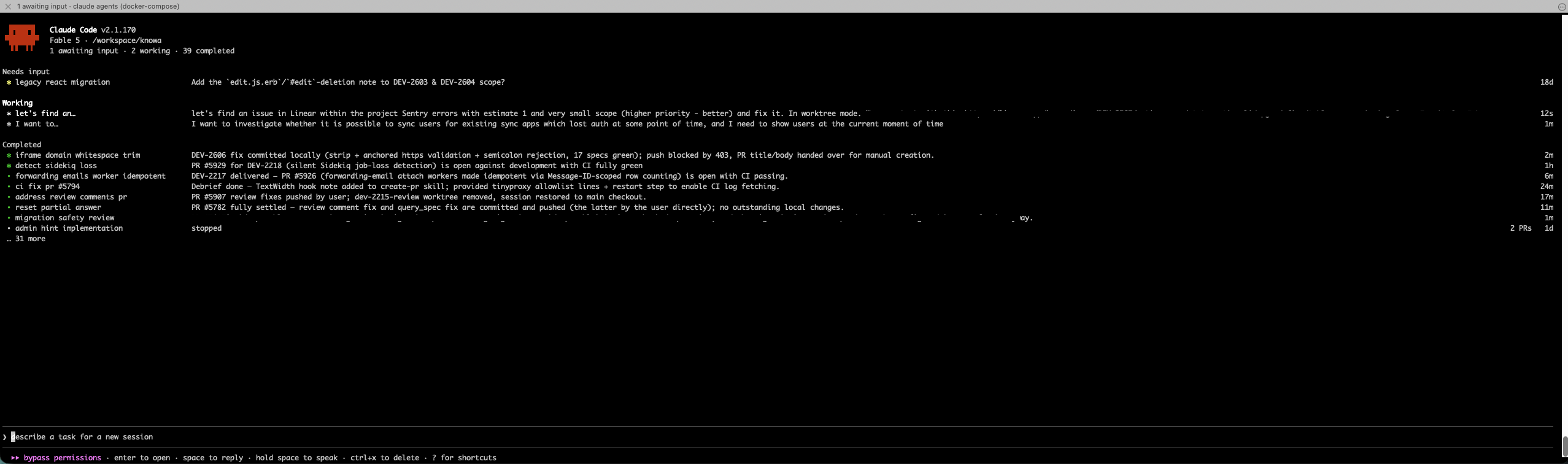
This is a place where you can run multiple sessions and review them all in one spot. Every session runs in its own worktree, unless you explicitly say otherwise. As a neat addition, it keeps your sessions alive even if the terminal was closed.
Where to use Claude Code agents view: real parallel work across several tasks. As an example, you could fix a small bug in one session, work on your main task in another, and investigate production issues in the third. You will see all sessions in progress, sessions which require your attention, and the list of completed ones
Drawbacks:
- Sessions can sometimes freeze, leaving you without visible progress for a while.
- The feature’s controls aren’t very intuitive.
How to fix: not much to do about the first one. Hopefully it’ll be fixed soon. For the second, a keyboard cheat sheet does the trick.
2. Claude Code worktrees
The Claude Code agents we just discussed use Claude Code worktrees internally, but if you want more manual control than the Agents View offers, this is a good option.
A quick overview: with Claude Code worktrees, each task runs in its own git worktree, so file changes never conflict. It also can be used for real parallel work across several tasks.
Note section: What is Claude Code worktree: a separate working directory linked to the same repository but isolated from other tasks. That means every AI agent can edit files independently without overwriting someone else’s changes or causing merge conflicts.
Drawbacks:
- All gitignored files won’t exist in a git worktree (true for Agents View as well).
- Managing all the terminal windows can get difficult.
- Reviewing and testing changes isn’t convenient, since it requires manual steps, like switching to a worktree, starting a server, etc.
How to fix: use tools built for organizing terminal windows that let you point to which files should be copied. For example, a tmux plugin like workmux. Another option: add a worktree note to your CLAUDE.md that symlinks these files automatically when a worktree is created.
3. New folder connected to the same repo
It might sound like an old-fashioned way to do things, but it can be genuinely handy: instead of a worktree, you just clone the repo again into a completely separate folder on disk.
The advantage is that it’s dead simple and hard to mess up. There’s no risk of losing data, unlike deleting a worktree, which wipes out any uncommitted changes along with it.
Where to use: if you have some long-standing task, you can drive it in a separate folder. As an example, we have the skill to rewrite the legacy JQuery code into a shiny (ok, maybe a bit worn, 18th version) React JS.
We do it in small pieces so each change can be properly reviewed, and since it’s a long-standing task, it can take months to finish. The skill’s instructions are simple: go into the pre-created folder, pull the latest changes, pick the smallest piece of code, rewrite it in React, open a PR, and watch CI.
Drawbacks:
- You end up managing multiple folders for one repo: add an env variable to your .env file in one, and you’ll need to remember to update it in the other too.
- Testing changes is inconvenient, since you need to run the server from within that separate folder.
How to fix:
- Symlink your main gitignored files into this folder
- Create an alias to run the server on a different port within this exact folder
4. Claude Code Teams
It is still experimental. Instead of one agent working alone, it assembles a whole team of agents, each with its own session.
Where to use Claude Code Teams: basically any task that needs to be implemented, then tested, then reviewed. You don’t need to do those steps one after another yourself. The testing and reviewing happen at the same time, handled by different agents, automatically (which is great).

Drawbacks: it can burn your tokens out pretty quickly.
How to fix: this is a common tax on parallel work. If your company allows it, use a subscription plan instead of pay-as-you-go API billing, and double-check that “Extra usage” is switched off in settings so you don’t blow past your limits.
5. Claude Code web and routines
Claude Code Web lets you run tasks in the cloud, so they don’t depend on your laptop being open or even turned on. Routines take that a step further and run tasks on a schedule.
Where to use Claude Code Web: any long-running task. As an example of a Routine, you could set one up to review the past week’s code changes and update the documentation automatically. Another use-case is updating skills based on the PR reviews.
Drawbacks: some organizations restrict these tools over security concerns. I’ll leave you here because, you know, humble yourself before security and endure with patience.
How to avoid burnout while multitasking with AI?
Surely there are some issues with the tools. However, not only. There is also the emotional burden we talked about at the start. So, as an engineer with more than 15 years of experience, I’ll take the liberty of sharing a couple of things that help me with that.
1. Experiment with the context
Some tasks take more of your energy than others. Maybe it’s fine for you to work in parallel on one big feature and one small one. Maybe you can answer messages, check your mailbox, or look through logs while AI works on the feature. I’ve heard of people watching videos about new engineering tool features while AI works in the background. I’m a bit envious of that. For me, it’s too much. New information demands my full attention, not even an ounce less.
2. Experiment with the tools
Try some of the tools suggested above. Some will be more convenient than others for you. All of us are unique snowflakes, so there’s no silver bullet, just you and your way.
3. Try it out for a month or two
Yes, I know multitasking feels unpleasant. But maybe, just maybe, it’s because you’re not used to it yet. Our brains resist change, and since we live in fast-moving times, we need to adapt and suffer a little for it. I can say that after a couple of months, I caught the rhythm of moving fast. Now the main thing is not to get carried away too far.
4. Write notes in your way
I use a good old paper notebook for that. It helps me not to forget things and not to be burdened by all the tasks tapping on my window. Also, a Q letter near some tasks can help you to underline what tasks can be completed quickly and therefore are ideal to work in parallel with AI.
If you do not like handwriting, you can use another tool you prefer: even simple text or md file. Essential is writing down what should be done, not where you write this.
5. Switch off notifications on your phone and work chats when it is possible
Do not add more multitasking than you already have. The emotional burden of multitasking didn’t disappear anywhere, and it is more important now than ever to keep your borders up. And not to be distracted by “hello” and then waiting for the message with the matter for another 5 minutes.
6. Take breaks
Sometimes, you need them. Take it easy. You are not a robot (yet), so your brain feels less tired after working on a single task, and it is normal. Let’s not be harsh on ourselves. There are people around who already do it well enough; no need to contribute to this. And when you feel tired, please just work on one task at a time.
FAQ: Parallel AI coding with Claude Code
What’s the difference between Claude Code Agents View and worktrees?
Agents View is the interface, a single place to run and monitor multiple sessions, with worktrees created automatically underneath. Worktrees are the underlying mechanism, a separate checkout of the repo per task. Use Agents View for convenience; use worktrees directly if you want more manual control.
Does Claude Code Teams cost more than running a single agent?
Yes. Because a team splits one task across multiple agents working in parallel: implementing, testing, reviewing. It consumes more tokens than a single agent working sequentially. A subscription plan, rather than pay-as-you-go API billing, generally absorbs this better.
Can Claude Code run tasks without my laptop being on?
Yes, but only with Claude Code Web or Routines you can run tasks in the cloud independent of your local machine. Routines can trigger tasks like code review or documentation updates on a schedule.
Is multitasking with AI coding tools actually more productive?
It depends on how it’s done. Running too many parallel sessions at once creates a false sense of productivity while increasing mistakes. The sustainable approach is picking one tool that fits your task, running a manageable number of sessions, and using the freed-up time deliberately rather than splitting attention across everything at once.
Which Claude Code tool should I start with for parallel work?
Agents View is the easiest entry point since it requires no manual worktree management. Move to worktrees directly if you want more control. Claude Code Teams is on by default with a subscription. Claude uses it automatically, splitting a task into implement/test/review roles when the work is well-defined enough to benefit, and skipping the team for simpler tasks.
I hope all of this helps you become more effective than before, without burning out.
Wish you happy coding and not that awful kind of multitasking!